Difficulty
Moderate
Steps
12
Time Required

User-Contributed Guide
This guide is not managed by the site's staff.
Quiz
0
-
-
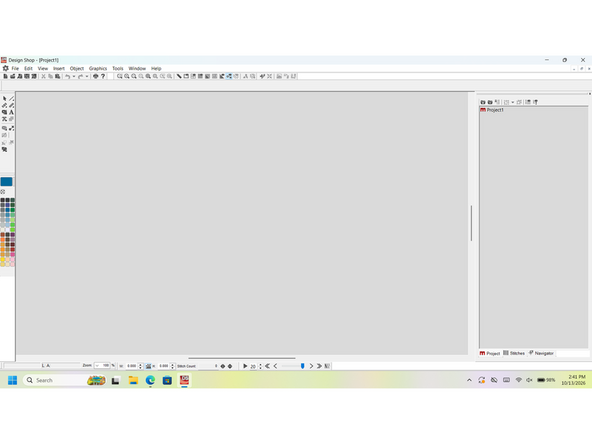
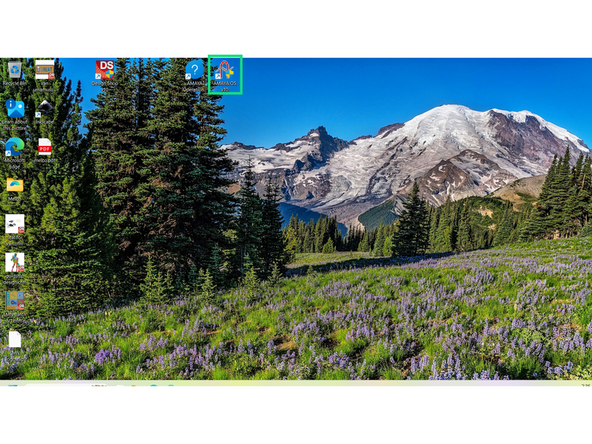
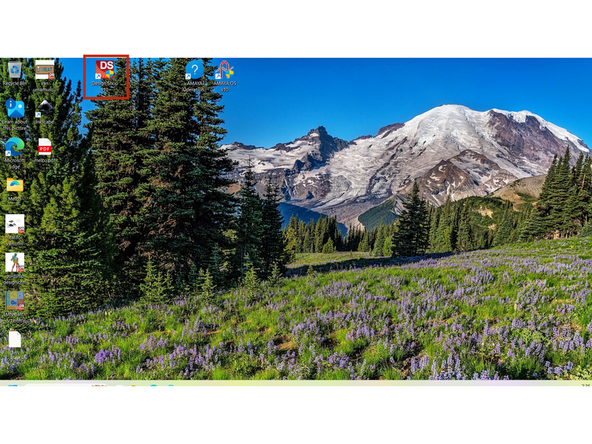
Design Shop V10 is software that allows you to design embroidery patterns, to launch it double click its desktop icon.
-
You should see a screen similar to the second image, the specifics of how to use this software will be covered in the following steps.
-
-
-
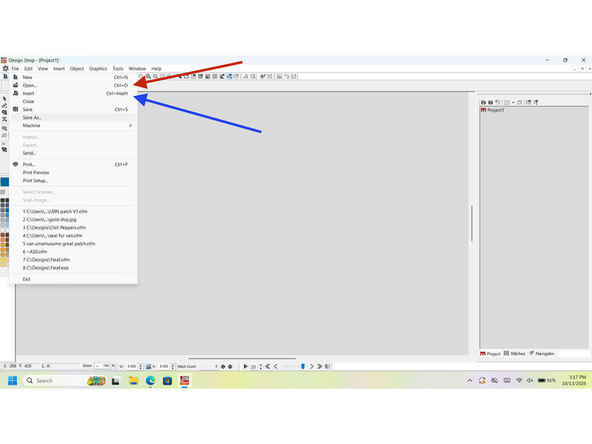
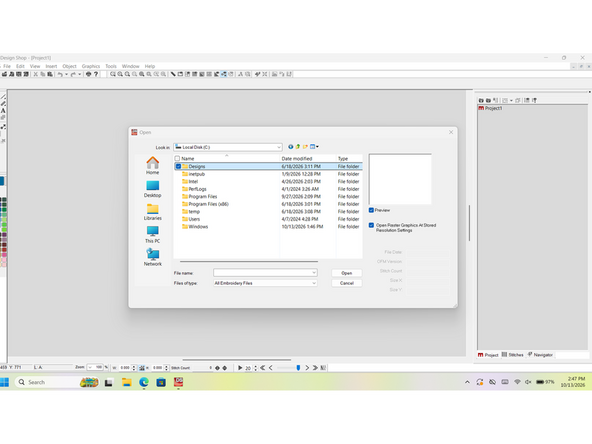
Design shop V10 has a variety of premade designs, these can be loaded by going to file, open in the top left of the screen, then by navigating the menu in the second image to this PC, Local Disk, and finally the Designs folder.
-
Similarly the Insert tool can add these designs as well.
-
Drawing your own custom designs is possible through this software as well, and will be covered in the following step. Converting images to embroidery designs is possible and will also be covered in a later section of this SOP.
-
-
-
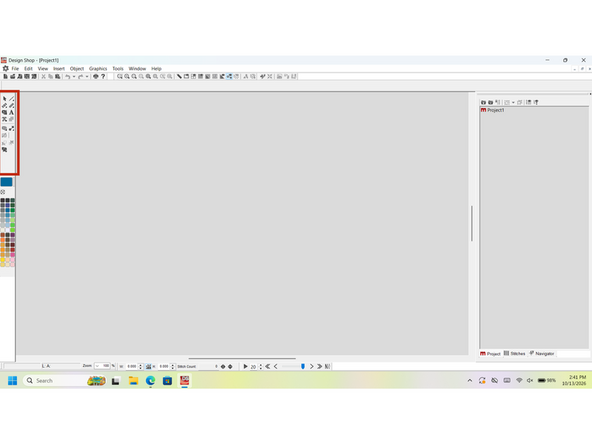
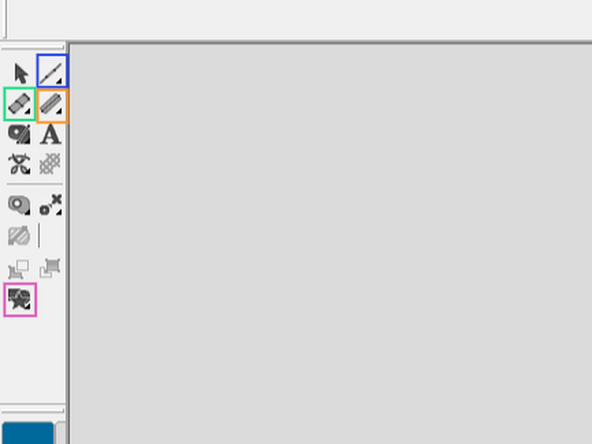
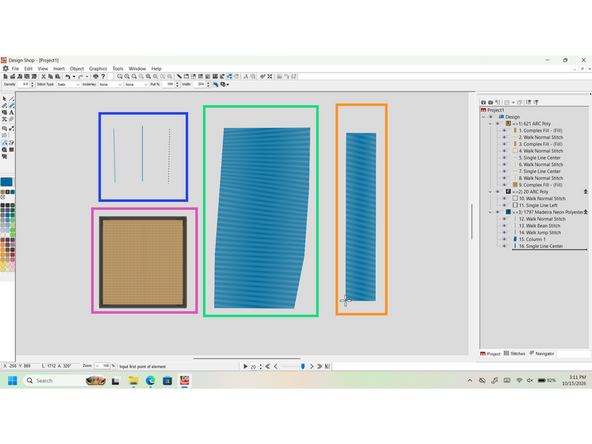
The Drawing tools are located in the middle left of the screen. The second image will highlight specific tools, and the third will show examples of their functions.
-
The first tool is walk tool, it allows you to add walk stitches, bean stitches and Jump stitches. The second tool is the column tool, it allows you to add columns filled in with satin stitches.
-
The third tool is Center Line tool, it allows you to draw a center line and a length. The length will determine how wide the center line will be. The fourth tool is the complex fill tool, it allows you to draw an area with straight or curved lines and fill it in.
-
The final tool covered here is the automatic custom shape input tool, it allows you to access a library of simple premade shape and designs
-
-
-
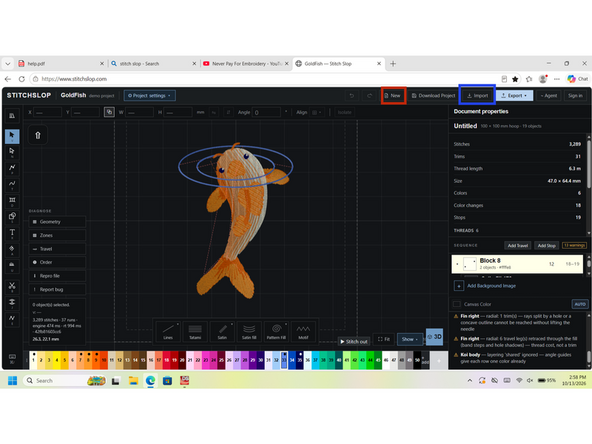
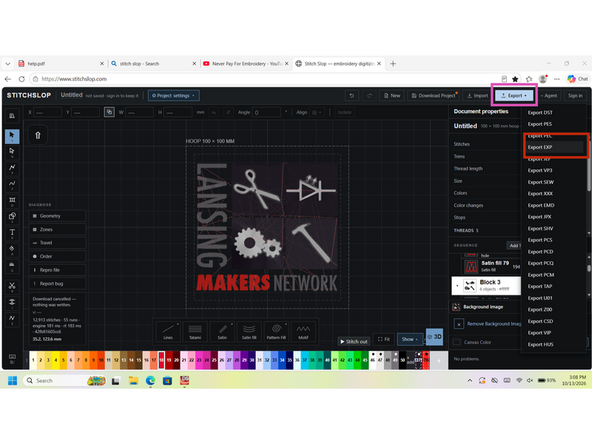
Launching your preferred internet Browser and going to www.stitchslop.com, Launches stitchslop, open source embroidery software that can convert images to embroidery designs. it should look like the first image.
-
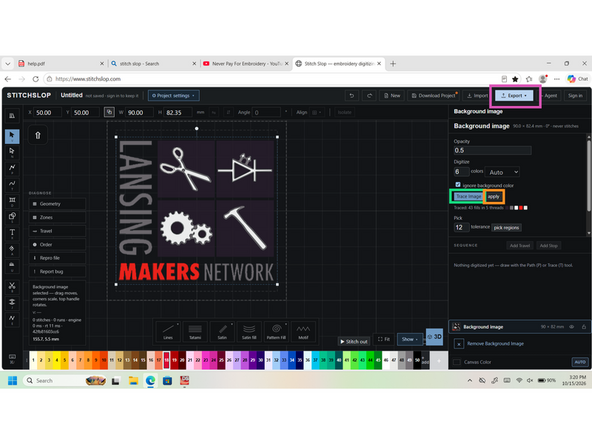
hitting New in the upper middle of the screen launches a new project, and import allow you to import your image, like the second image. After importing your image clicking the trace image button traces the image. The settings may be changed in this menu as well, including manually defining color regions.
-
Don't Forget to click apply after. Export the design using the export button and save it as an EXP file.
-
The custom design can now be loaded into Design Shop V10 using the open or insert commands covered in step two.
-
-
-
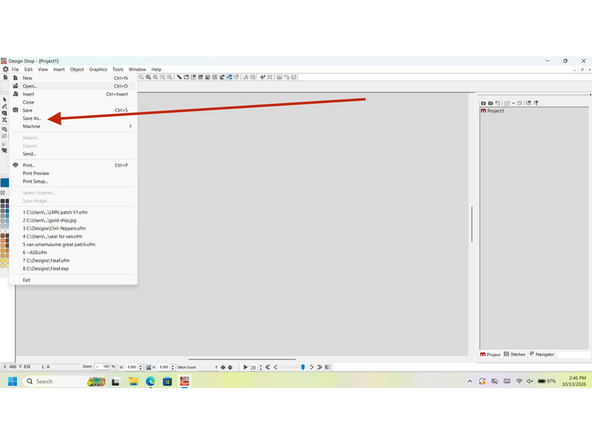
Save your design in Design Shop V10, using the Save as command. don't forget to give it a unique name.
-
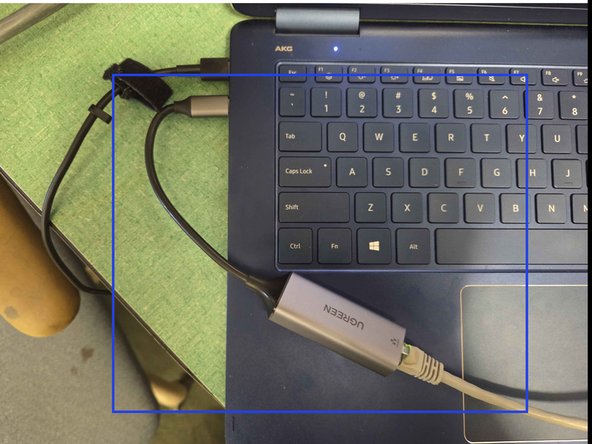
With the Computer connected to the machine, like the second image, launch AMAYA OS V10. It is very important that the computer be connected otherwise AMAYA OS V10 will not function properly.
-
AMAYA OS V10 is the software that runs the embroidery machine and determines the machines settings.
-
-
-
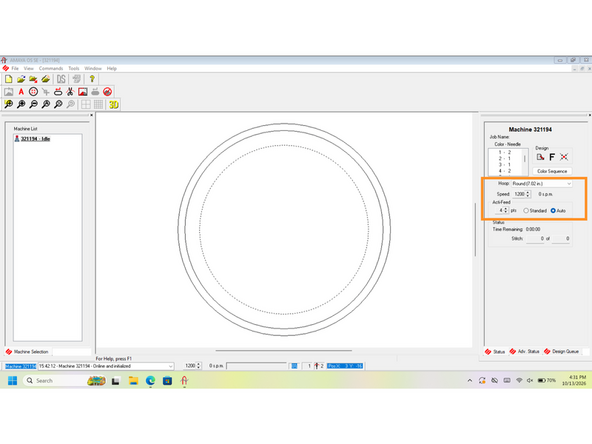
The screen should now match the first image.
-
The First step is Setting the machine speed is Stitches Per Minute, this setting can be found on the right middle of the screen in the second image. 1200 SPM is the default, and should work for most projects.
-
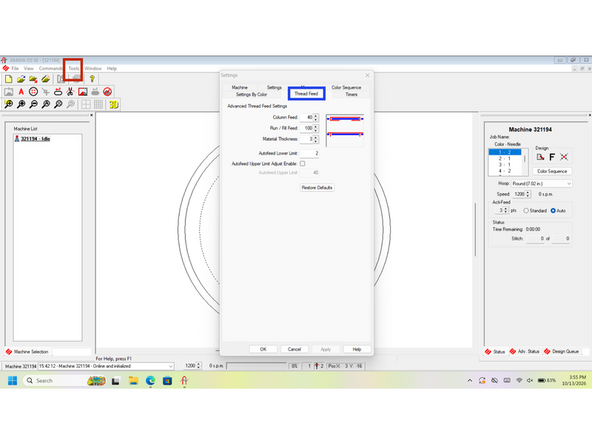
The next step is setting the material thickness, this can de done by navigating to tools, settings, like the second image, and then the thread feed tab. Generally 3 is the average thickness.
-
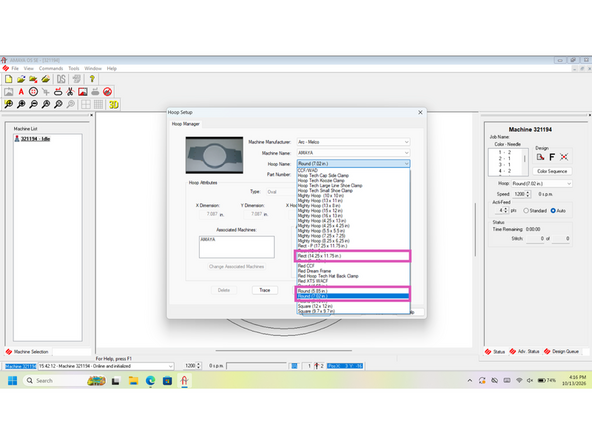
Next is Setting the proper hoop, this can be done in tools, hoop setup menu. We have three types of hoop available, Round 5.85in, Round 7.02in and rect - P 17.25 x 11.75 in
-
-
-
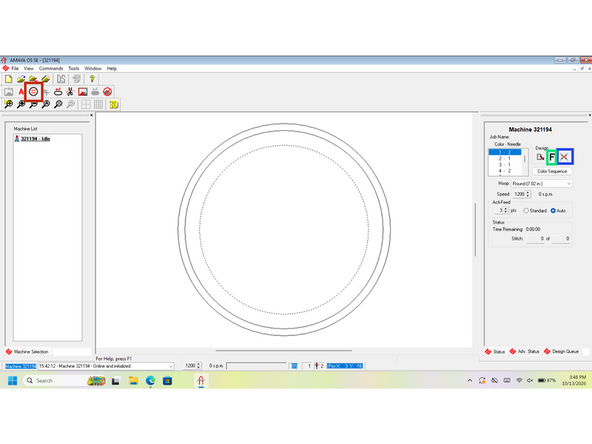
Using the center hoop button the hoop can be centered, next use the Center Design button to center the design. The Orientation Button changes the designs orientation
-
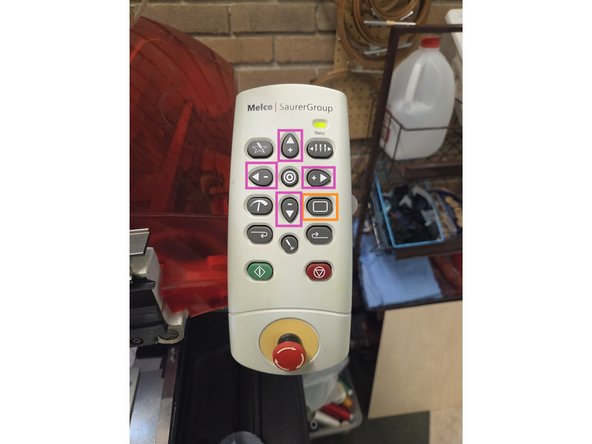
The position of the design can be adjusted using the control panel, visible in the second image, on the side of the machine. Pressing and holding the hoop button while also pressing the arrow buttons moves the design and hoop.
-
-
-
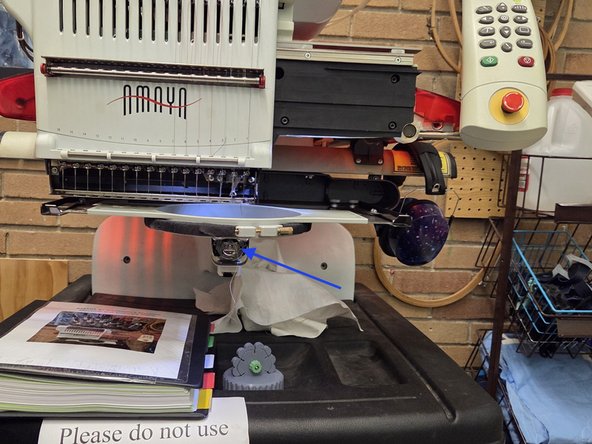
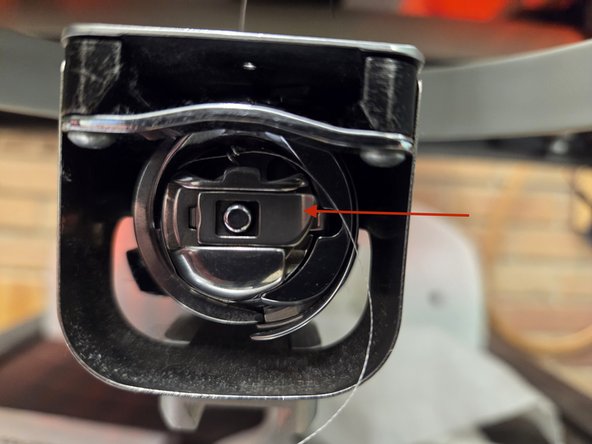
The bobbin is located under the hoop, and needs to be checked before embroidering. The Bobbin can be removed by pulling the release lever noted in the second image, towards you. The bobbin thread lasts 30,000 to 40,000 stitches, and may run out mid embroidery
-
instructions on how to rethread the bobbin are provided in the manuals later in this binder.
-
-
-
Instructions on how to thread the machine are located in the manuals later in this binder. The threads that are loaded are visible atop the machine.
-
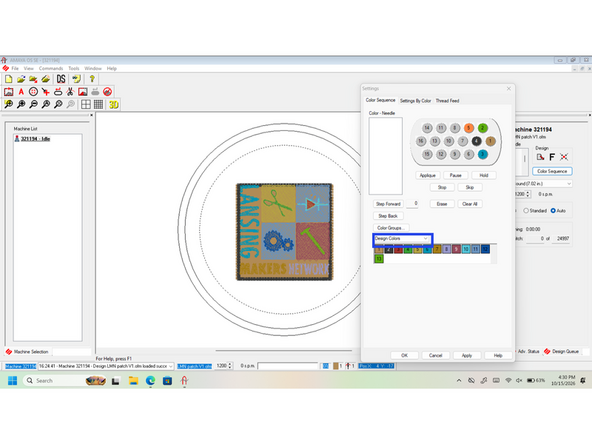
Defining the colors can be done two ways, either by color sequence or assigning by Active Colors
-
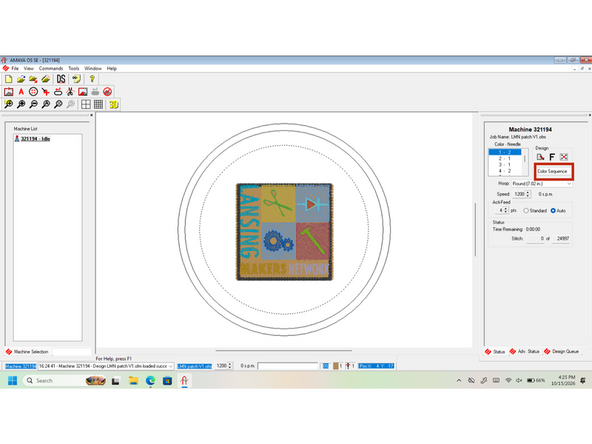
Defining by color sequence can be done by clicking the Color Sequence Button, and clicking the step back button until the design is greyed out, like the third image. Then by clicking step forward one section is colored in and by clicking the appropriate needle, highlighted in the second image. repeat this process until the design is done.
-
Defining by Active colors follows the same process of opening the color sequence but instead clicking the Design Colors drop down, highlighted in the second Image. With the change made, click a colored square then a needle to assign it a color, and repeat this process until all colors are assigned.
-
-
-
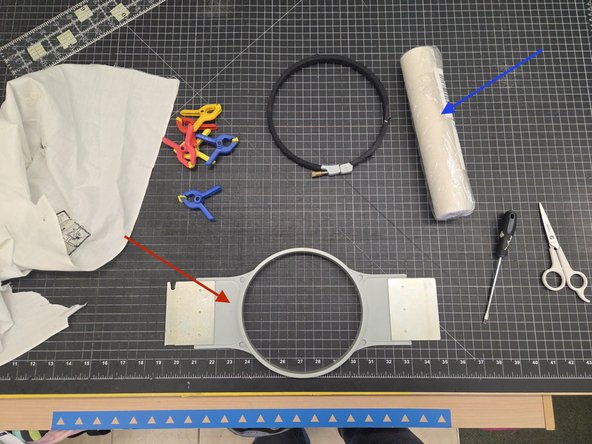
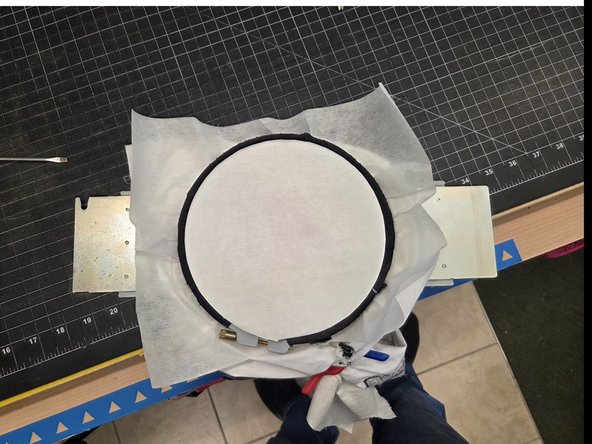
First locate the proper size hoop, lay the hoop upside down, open the hoop, lay the fabric across it with the side you want embroidered facing away from you, cut the tear away backer to size, lay that over the fabric and close the hoop making sure that the fabric and backer is taught.
-
An example of properly prepared hoop is visible in the second image. Use the supplied clips to hold excess fabric.
-
-
-
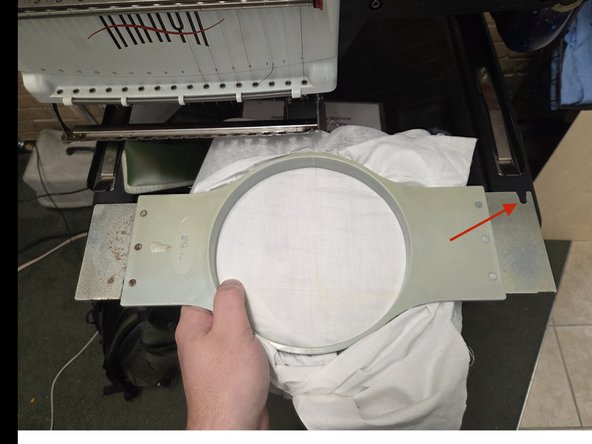
First locate the cut out on the right side of the hoop, ad align the cutout with the right hoop arm, then slide the hoop away from you into the hoop arms like the first image.
-
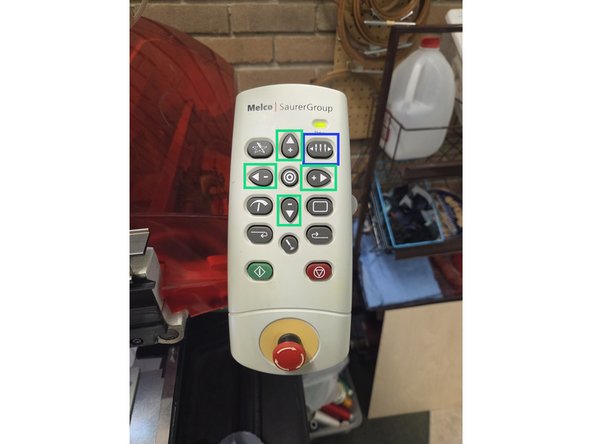
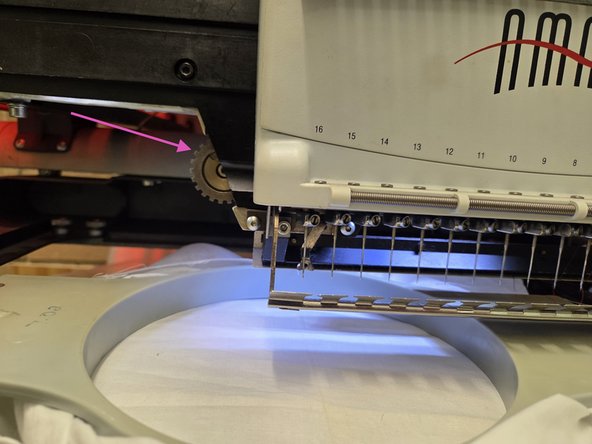
Adjusting the presser foot can be down by moving the needle plate to the 16th needle using the control panel, by holding the Needle Button and using the Arrow Keys at the same time. Both buttons are highlighted in the second image.
-
Then by going to tools, maintenance, then the head timing tab, then clicking bottom center. With the needle in the lowest position rotating the gear clock wise raises the presser foot. It should be adjusted to just above the hooped fabric
-
-
-
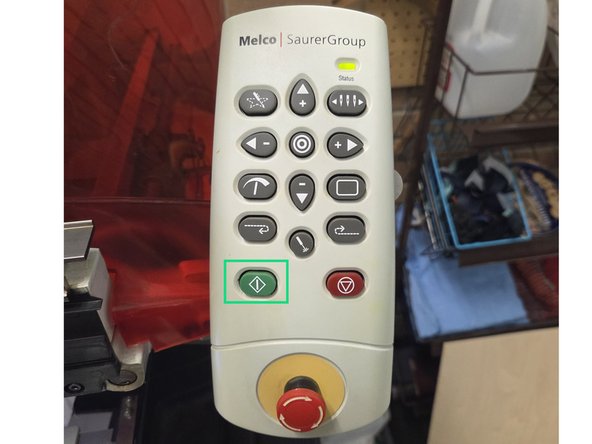
With the fabric hooped, bobbin checked, setting set, and design loaded, the final step is pressing the green start key on the control panel.
-