Difficulty
Moderate
Steps
11
Time Required
- How to Use Prusa Slicer 11 steps

User-Contributed Guide
This guide is not managed by the site's staff.
Quiz
0
-
-
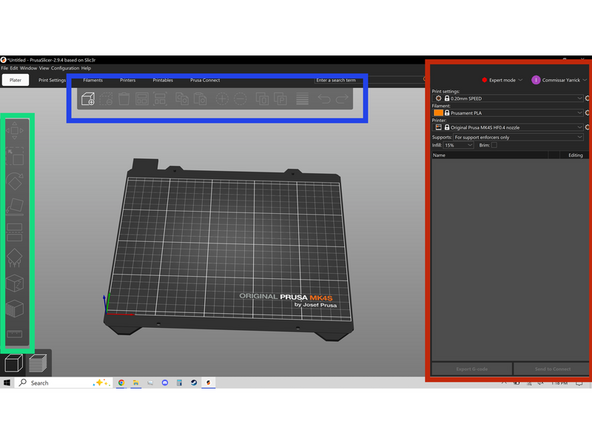
Double click Prusa Slicer on the desk top to open it. It should look the first image.
-
There are three areas that will be discussed, the top tool bar, on the top of the screen, the left tool bar, on the left of the screen, and the printer profiles and settings, on the right side of the screen.
-
These tool bars and setting will be discussed in greater detail in the following steps.
-
-
-
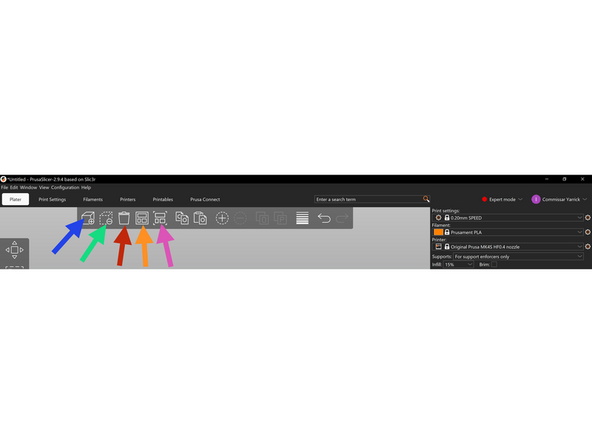
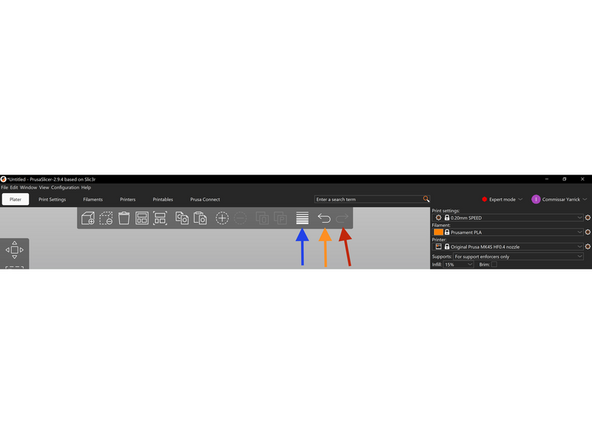
The top tool bar focuses on manipulating multiple objects on the build plate.
-
The first tool is Add Object, this lets us add the files we want to 3D print to the build plate. The second tool is Remove Object, this allows us to remove the files from the build plate. The third tool is Delete All, this allows us to remove every file on the build plate.
-
The fourth tool is Arrange, it automatically arranges all files loaded as efficiently as possible using up to nine total build plates. The fifth tool is Arrange Current, which arranges the currently selected build plate.
-
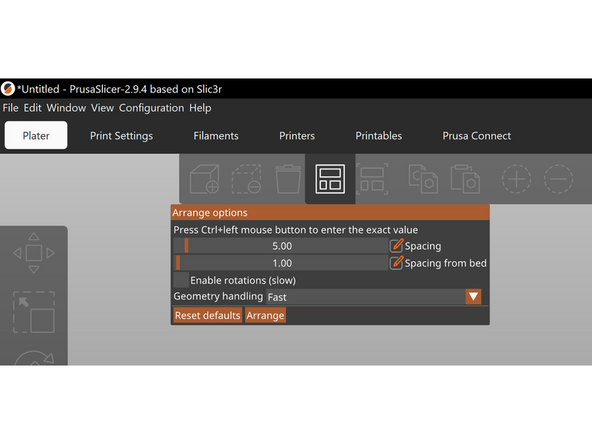
You can right click either arrange tool to open the arrange options menu, seen in the second image, and change settings like the minimum allowable spacing between objects and enable rotations that may allow for a more efficient use of space. A greater explanation of the multiple build plates will be included later in this SOP.
-
-
-
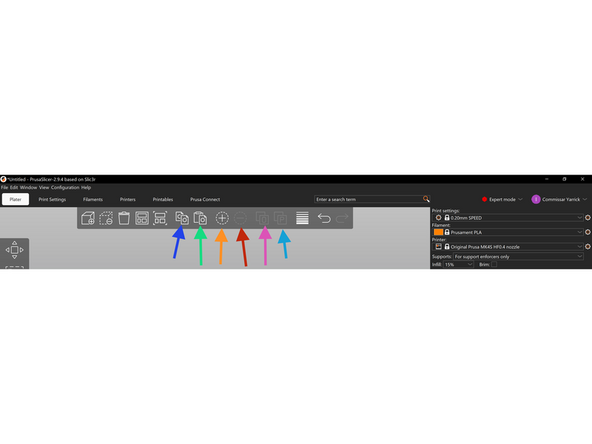
The next two tools are Copy and paste, These tools allow you to copy an object with all of its current settings and paste it somewhere else.
-
The next two tools are Add Instance and Remove Instance, which add multiple instances of the same object with all settings changing if they are changed on one instance. I.E. if you add supports to one instance, supports will be added to all the instances.
-
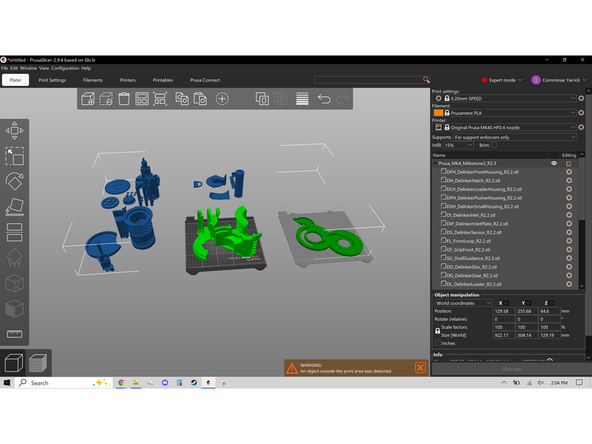
The next tool is Split To Objects, this tool is useful when one 3D print file is multiple objects, like the second image, that must be split apart to be printed. More technically it splits that file into its separate shells, or fully enclosed areas in the file, and drops them to the build plate.
-
The next tool is Split to Parts, which similarly separates a 3D print file into multiple objects, but keeps their initial position and treats all of them as the same object. Essentially, this tool is meant to be used with a multicolor 3D printer to color models that are already broken into separate sections.
-
-
-
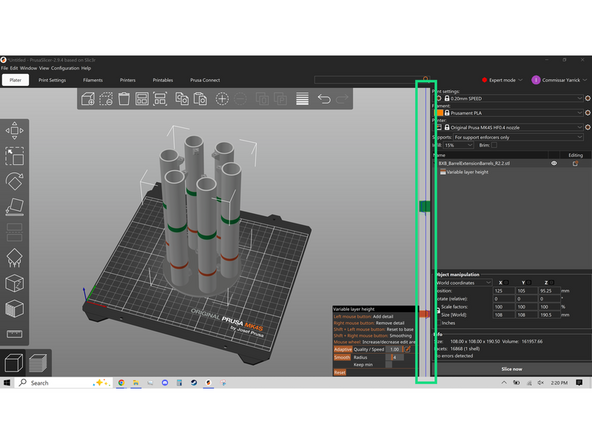
The Next tool is Variable Layer Height, which lets us change the height of each layer printed, rather than keep them all the same height. This tool is useful for making some layers larger which lets them print faster while keeping the functional part of a model exactly the same or smaller.
-
The Variable Layer Height menu, shown in the second image, lets you use left and right click, in the column on the right highlighted in green, to make the layers short or taller respectively. The sections highlighted green are shorter and the sections highlighted red are taller.
-
it should be noted that the use of this tool disabled the use of organic supports, which will be explained in detail later in this SOP.
-
The last two tools are Undo and Redo, which undo the last action performed or redo the last action performed respectively.
-
-
-
The left tool bar has tools for fine manipulation of a single object. You must have an object selected to use most of these tools. to select an object left click it and it will highlight green like the first image.
-
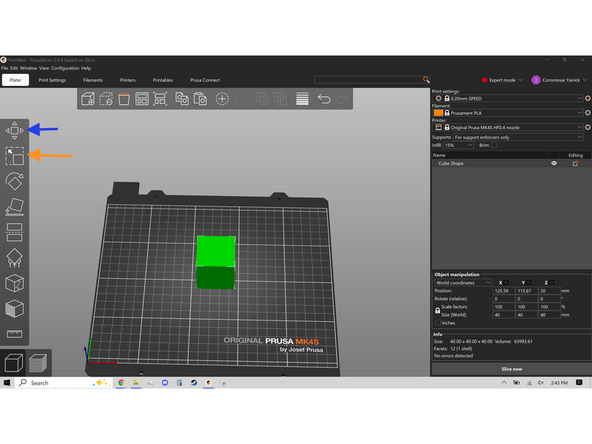
The first tool is Move, which allows for free movement of an object by grabbing it with left click, or precise movement along the X, Y, or Z axis by grabbing the gnomons, highlighted in the second image.
-
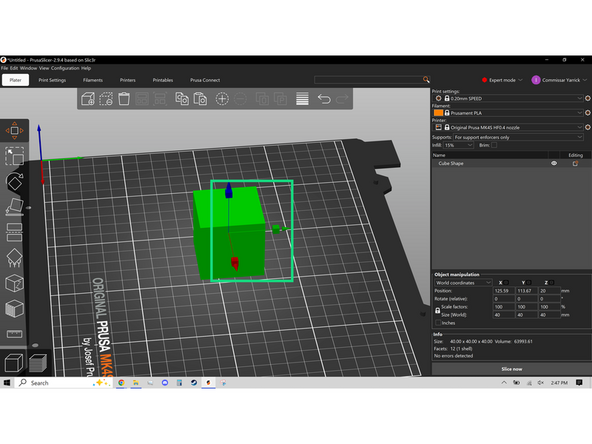
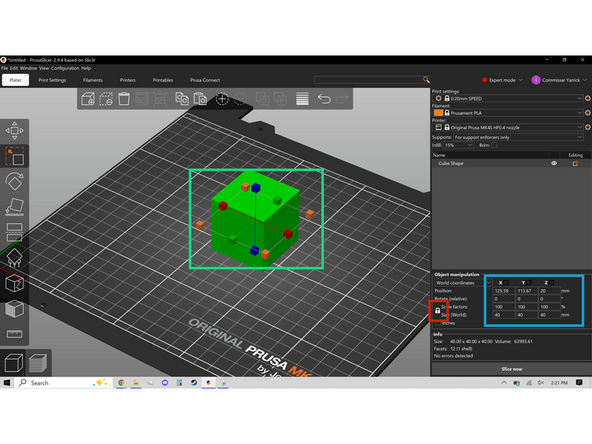
The Second tool is Scale, shown in the third image, allows you to stretch the object in X, Y, and Z axes or all three at once, if the world scaling factors are unlocked, which can be done by left clicking the padlock highlighted in the third image. Scaling is done by grabbing the gnomons.
-
If scaling by a percentage would be easier specific numbers can be entered in the scale factors, highlighted in the third image.
-
-
-
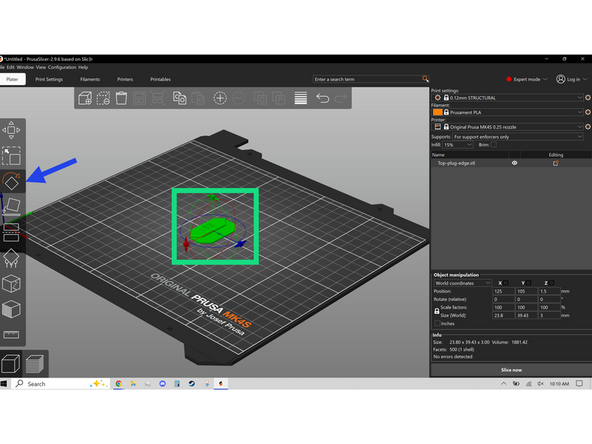
The next tool is Rotate, it allows you to change the orientation of an object along its rotational axes by grabbing the Gnomons highlighted in the first image.
-
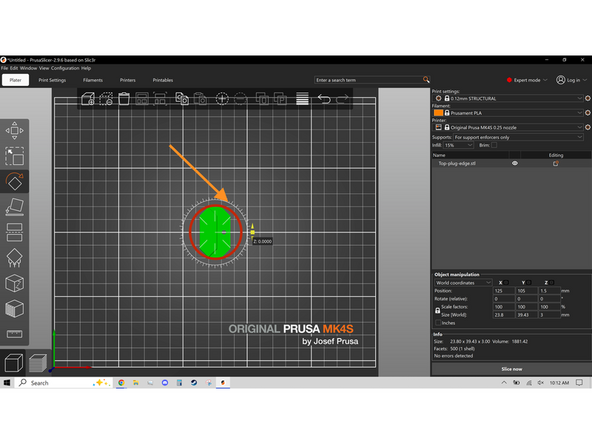
When one of the Gnomons is left clicked and held, A ring appears like the second image. Dragging outside of this ring allows for free rotation, while the Ticks on the inside snap to every 45 degrees, and the Ticks along the edge of the ring snap to every 5 degrees.
-
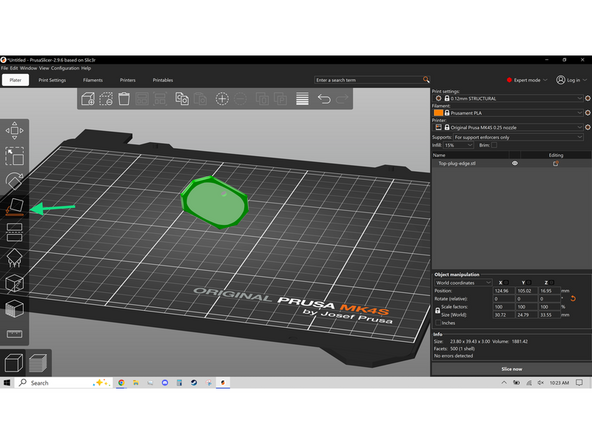
The next tool is Place on Face, which identifies flat surfaces on the model, shown in the third image, and when clicked snaps that face to the build plate. This allows very quick reorientation of model, especially if it loads in an unprintable orientation.
-
-
-
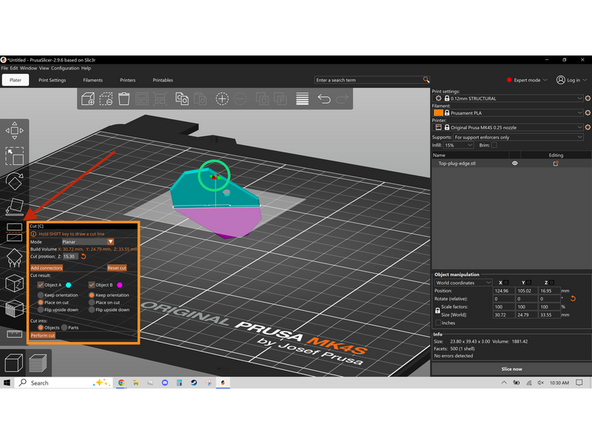
The Next tool is the Cut tool, which is used to separate a model that is too large to fit on the build plate. The cut can be rotated using the gnomons highlighted in the first image. The exact settings of the cut can be changed in the settings panel.
-
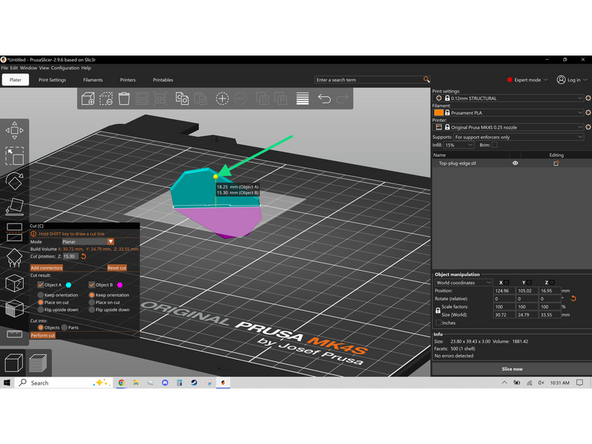
The sphere, highlighted in the second image, in the center of the Gnomons can dragged up and down to change the height of the cut.
-
-
-
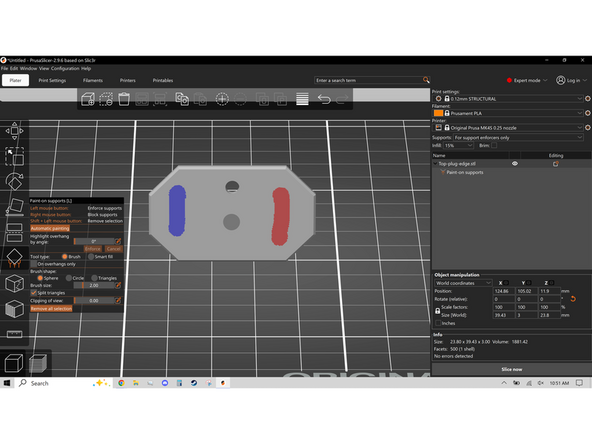
The next tool is paint on support, using left click you can "paint" on areas of blue where supports will be, and areas of red where supports will not be placed. Supports are added to areas of the model where the printer would be printing onto thin air, also called an Overhang. there will be a more detailed explanation of Overhangs later.
-
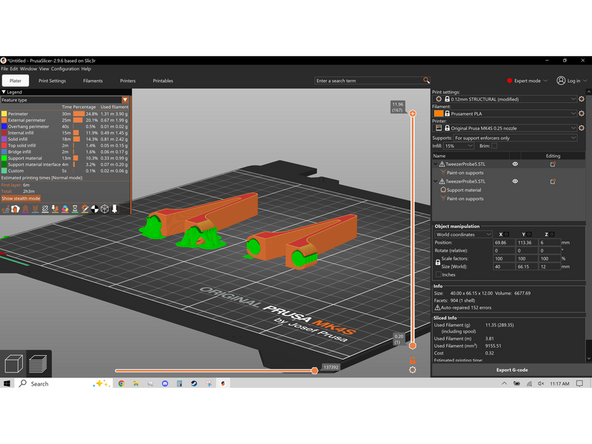
There are multiple different types of supports, like snug supports on the right of the second image, and Organic supports on the left.
-
The major difference between snug and organic supports, are that snug supports print faster but use more material, and organic supports print slower but use less material. Generally, snug supports are better used supporting flatter areas and organic supports are best used on more curved organic shapes.
-
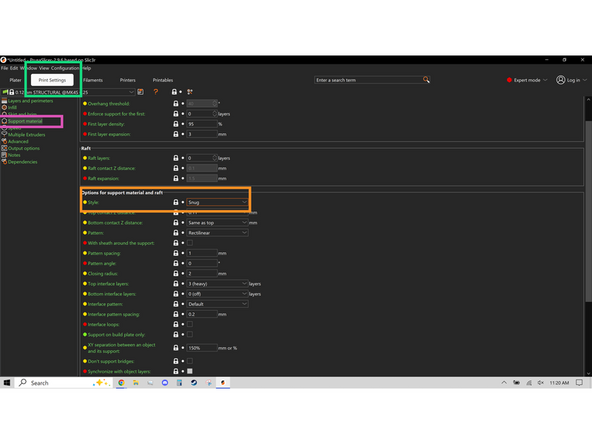
The type of support can be changed under print settings, support material, style.
-
-
-
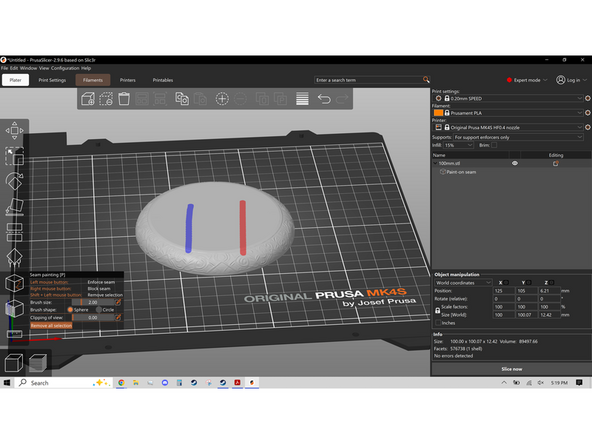
The next tool is Seam Painting. this tool can designate where the the 3D printer starts and ends layers, I.E. where the seams are on the printed object. Left click dragging leaves areas of blue, where seams will be, and right click dragging leaves areas of red, where seams will not be. This is most useful for artistic 3D prints.
-
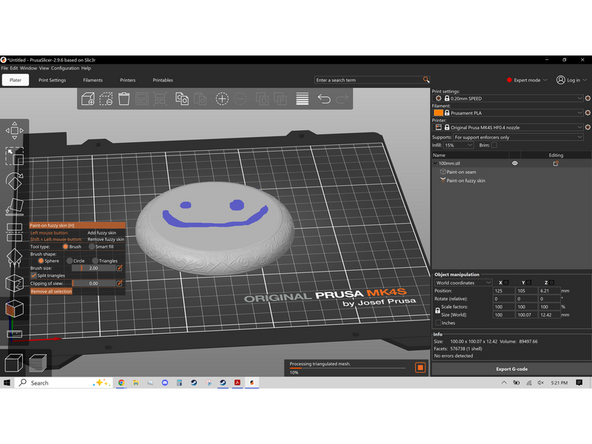
The next tool is Fuzzy Skin. Fuzzy skin adds a jitter to the Nozzle as it prints resulting in a fuzzy surface texture on the finished print. Left Click dragging add areas of blue, like the second image, where fuzzy skin will be placed. A visible example of this is in the third image, where the left half of the object has fuzzy skin.
-
Fuzzy skin is useful for adding a grip texture to 3D printed tools
-
-
-
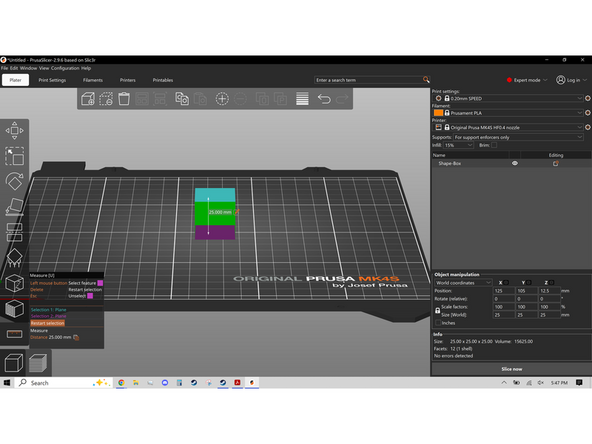
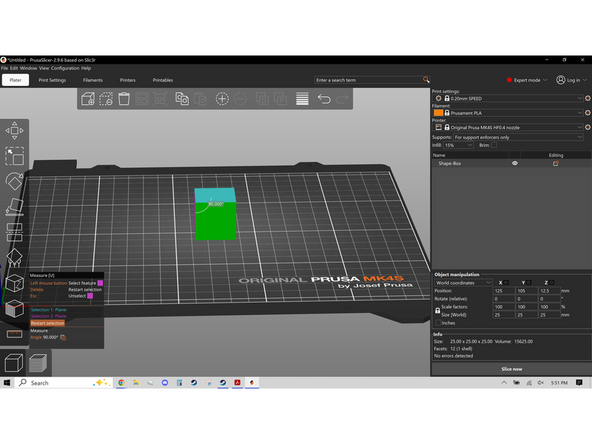
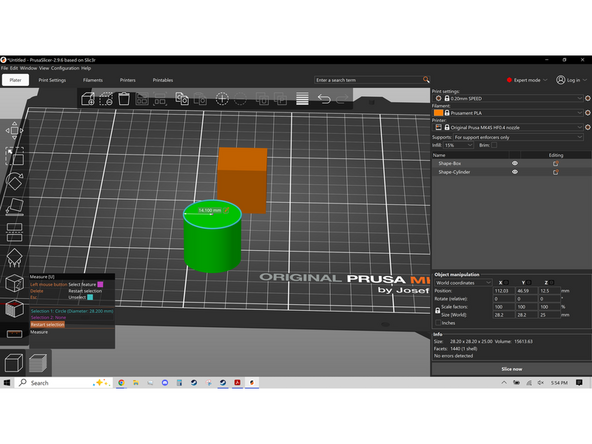
The last tool is Measure, This allows measuring distance and angle between two points, planes, or measuring the Diameter or Radius of circular elements. Left clicking places the Blue element and left clicking again adds the purple element. The distance, angle, Etc. is then measured between two elements.
-
The first image demonstrates a distance measurement, the second image demonstrates an angular measurement, and the third image demonstrates a radial meaurement.
-
-
-
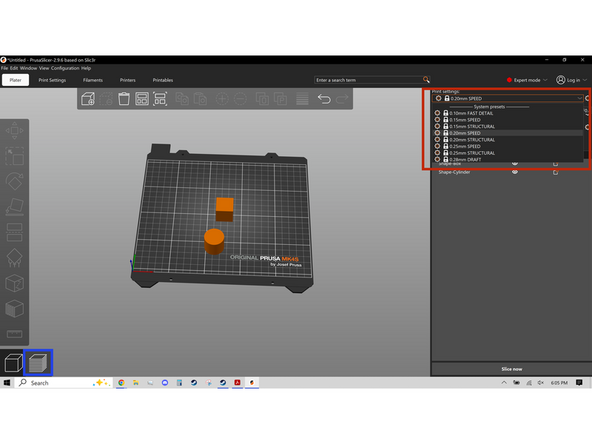
with all of your supports added, and objects positioned, select your desired layer height in the upper right menu highlighted in the first image. Then click Preview in the lower left part of the screen, also highlighted in the first image.
-
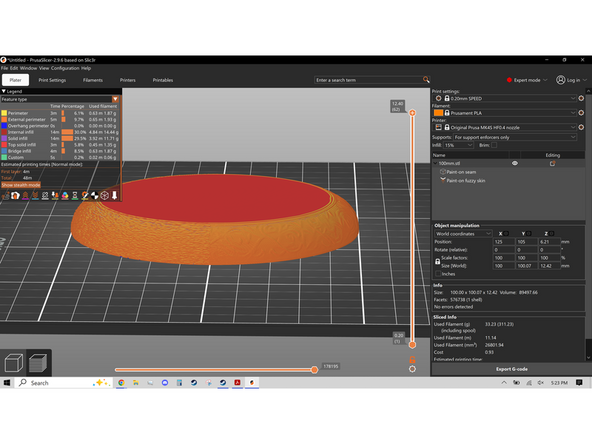
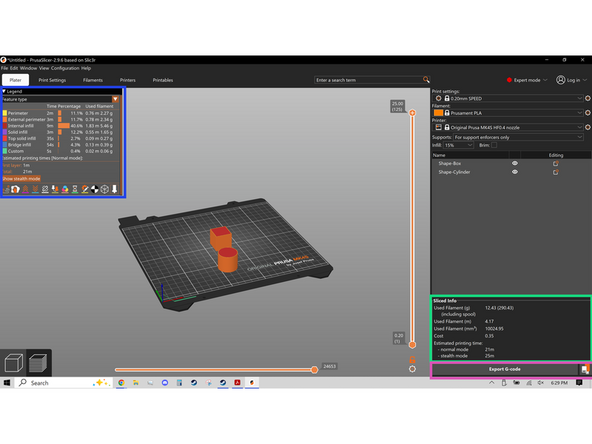
The Screen should now match the second image, in the upper left of the screen important information is displayed, like how long the print will take, how long the first layer will take, Etc. In the lower right even more information is displayed, like the amount of filament used and an estimated cost.
-
The last step is uploading your now Gcode to the USB stick/ SD card depending on which 3D printer you are using. This can be done with the export buttons highlighted in the lower right of the screen.
-